Why KidShield Needs These Permissions
Each permission is essential for protection. We never collect unnecessary data — your family's privacy is our priority.
Accessibility
Detects the active app so configured family rules can be applied.
Display Over Apps
Shows blocking screens on top of restricted apps instantly.
VPN Permission
On-device VPN filters internet traffic and blocks harmful sites.
All Files Access
Detects installed apps and protects device storage.
Usage Access
Provides app-usage duration for screen-time rules and summaries.
Device Admin
Supports parent-authorized management of protection settings where the platform permits it.
Location
Enables optional device location and configured safe-zone alerts.
Notification Access
Sends instant alerts for blocked content and new installs.
Grant All Permissions — In Order
Follow the platform-specific setup on your child's Android or iOS device. Grant the requested permissions to fully activate KidShield's protection.
Usage Access
Allows KidShield to calculate app-usage duration for enabled screen-time rules and family summaries.
📂 Settings → Apps → Special App Access → Usage Access
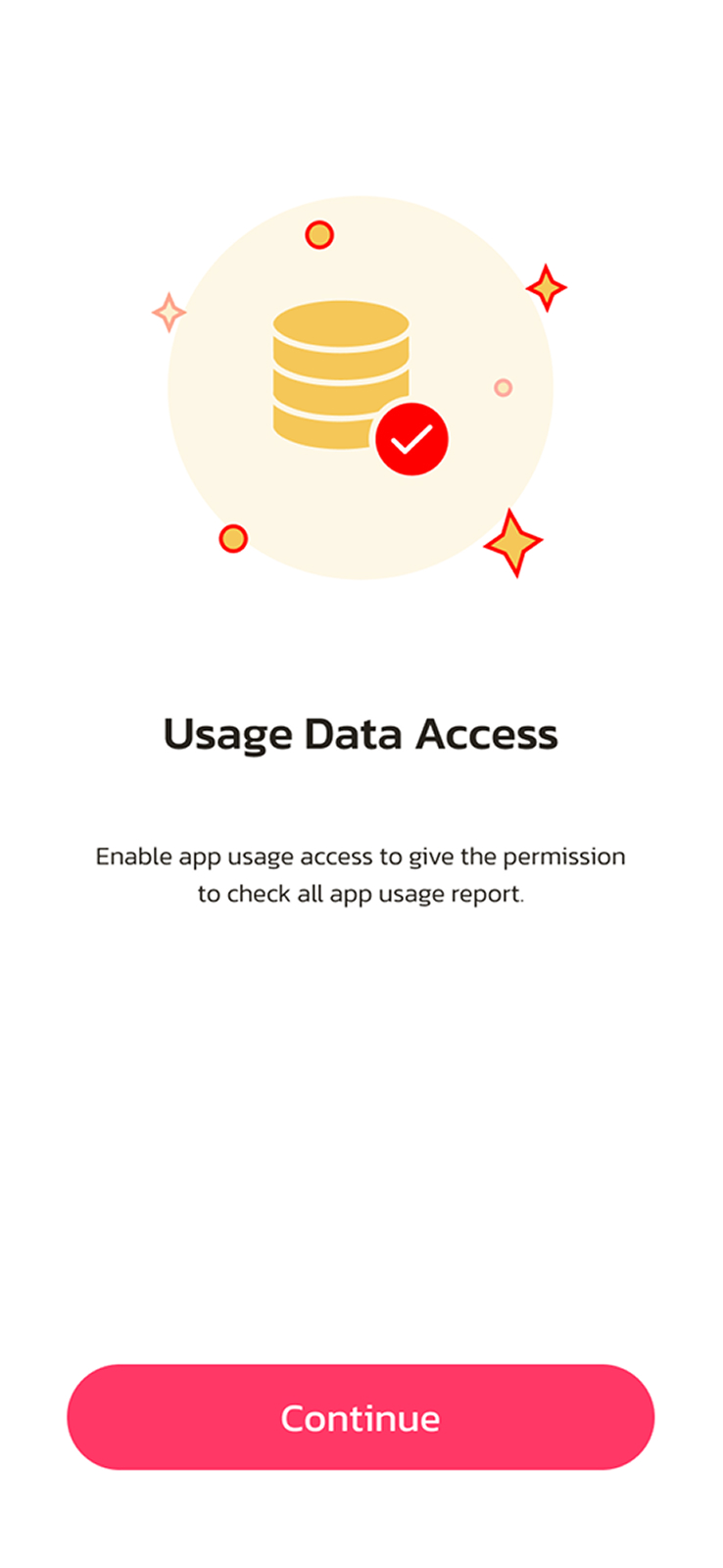
What you'll see when granting usage access
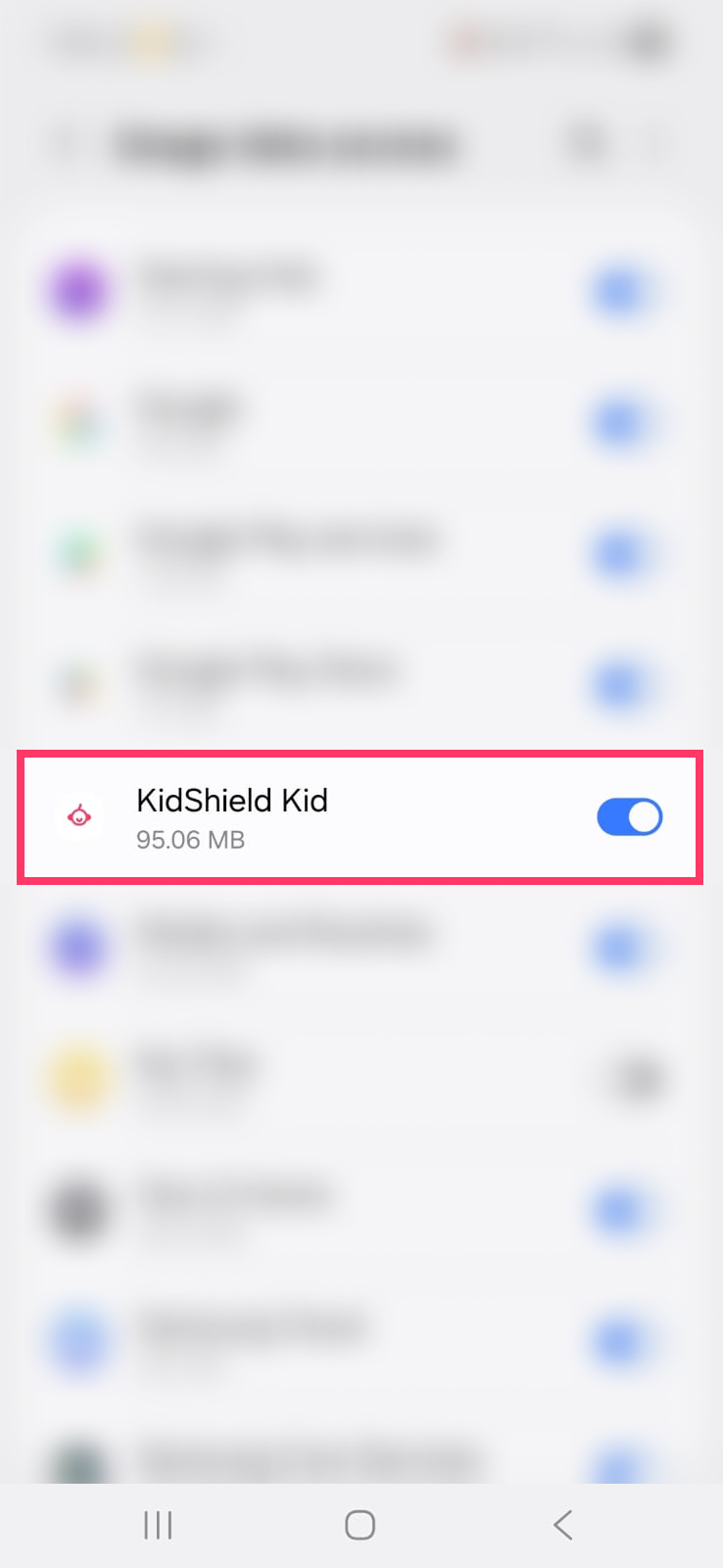
Toggle is ON — KidShield can calculate app-usage time
Accessibility Permission
Core permission — detects active apps and enforces all parental rules in real time.
📂 Settings → Accessibility → Installed Apps → KidShield Kid.
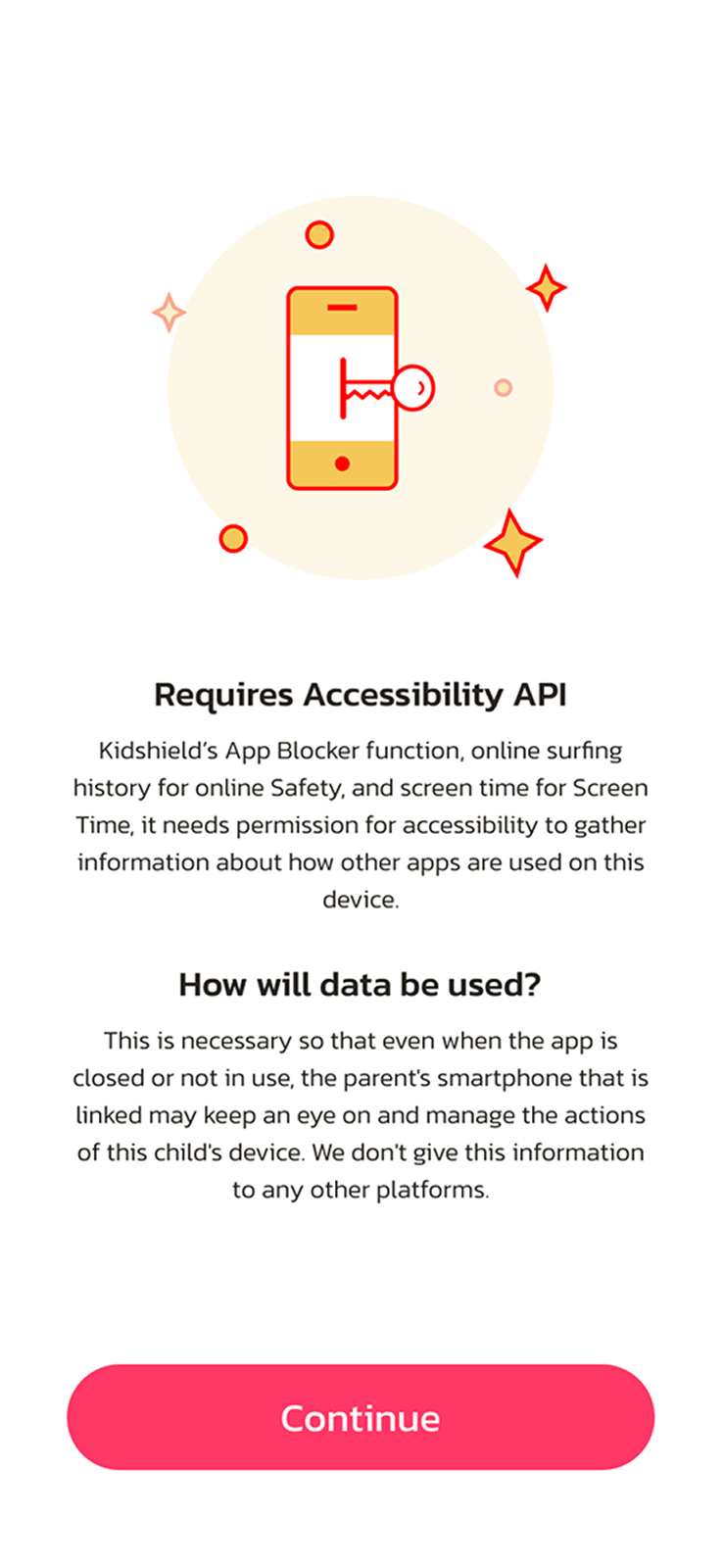
Tap "Continue" then Allow
KidShield Kid. shows status On
Device Administrator
Prevents uninstallation and keeps protection active even if your child tries to bypass it.
📂 Settings → Biometrics & Security → Device Admin Apps
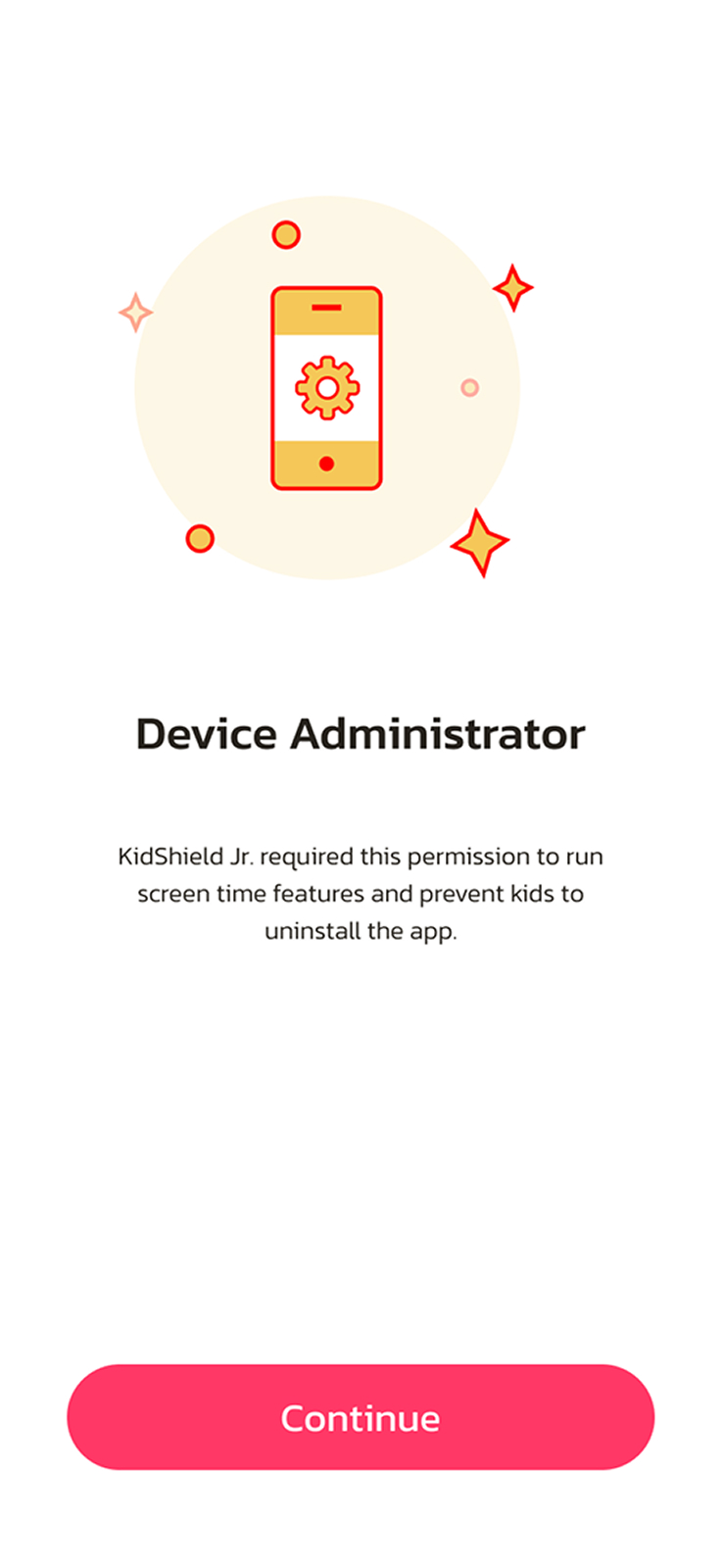
Tap "Activate" to grant device admin rights
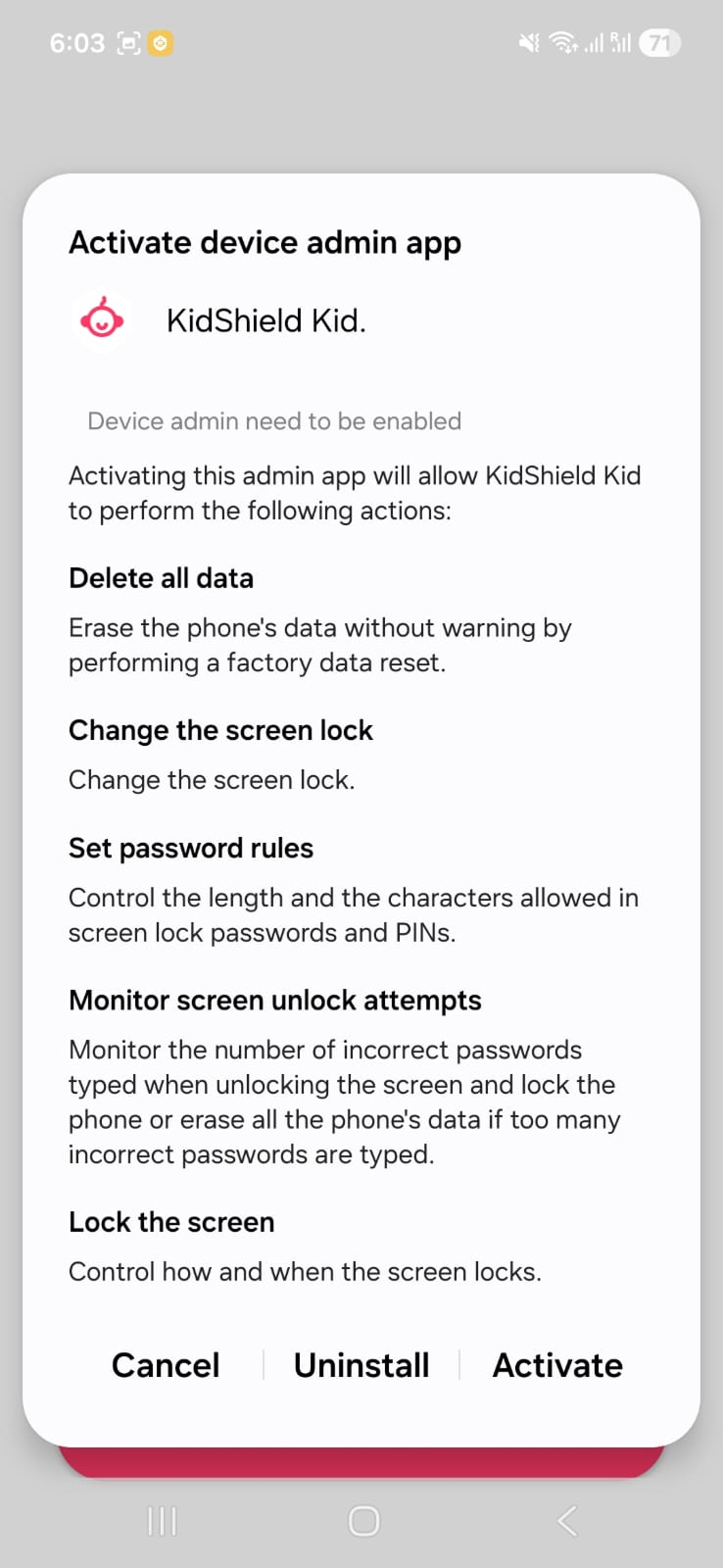
Tap Activate at the bottom to confirm
Display Over Other Apps
Lets KidShield show blocking screens on top of restricted apps instantly.
📂 Settings → Apps → Special App Access → Appear on Top
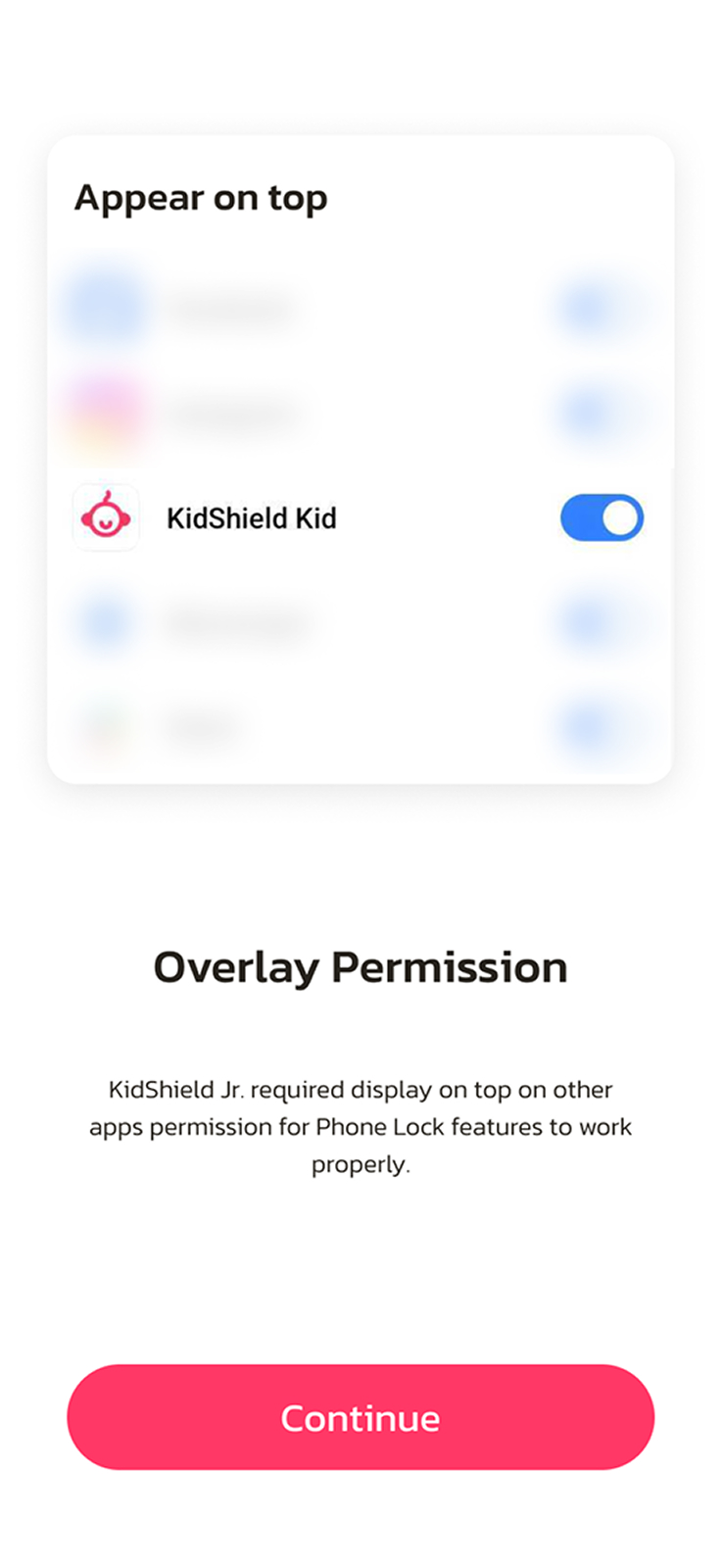
What you'll see for display over apps
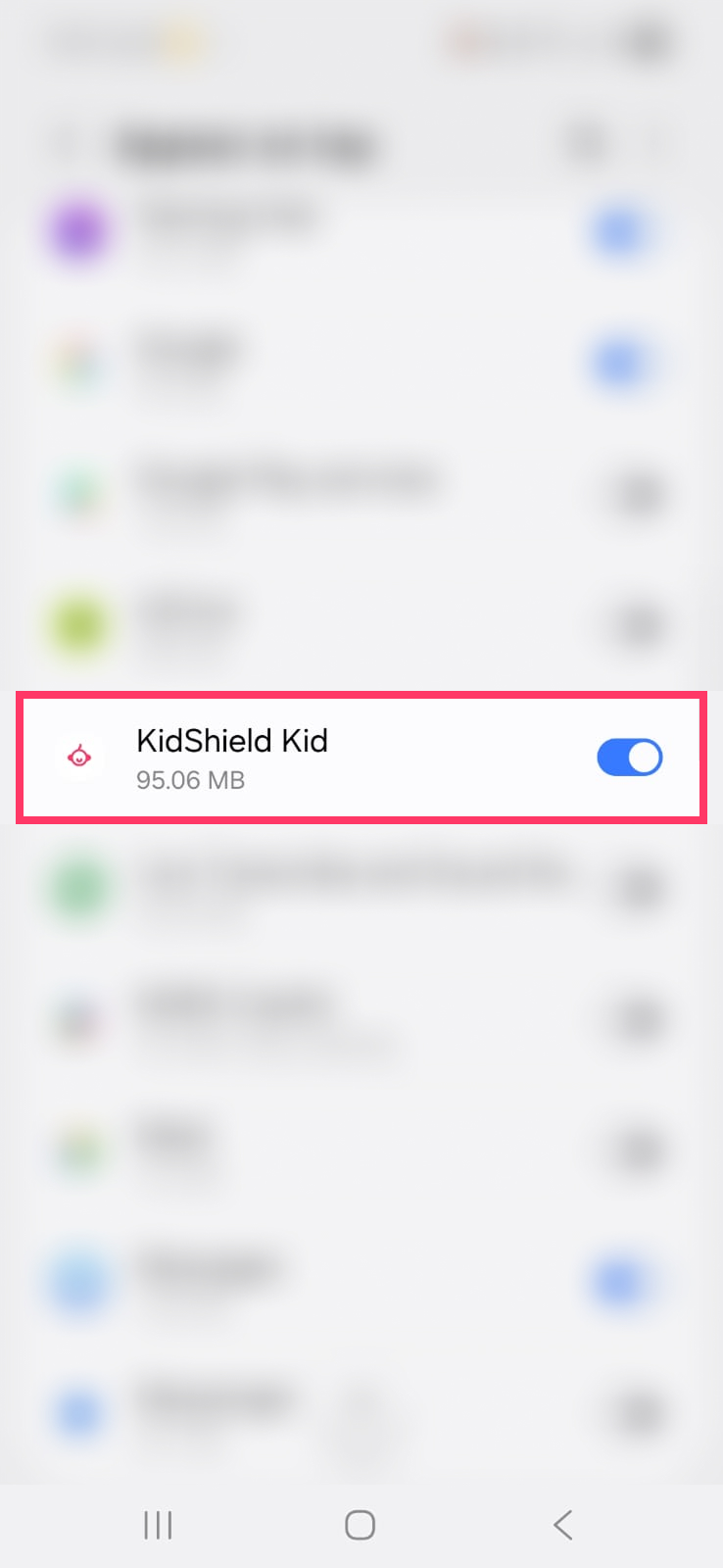
KidShield can now display blocking overlays
Battery Optimization
Keeps KidShield running in the background — never gets killed by battery saver.
📂 Settings → Battery → Optimize Battery Usage → KidShield Kid.
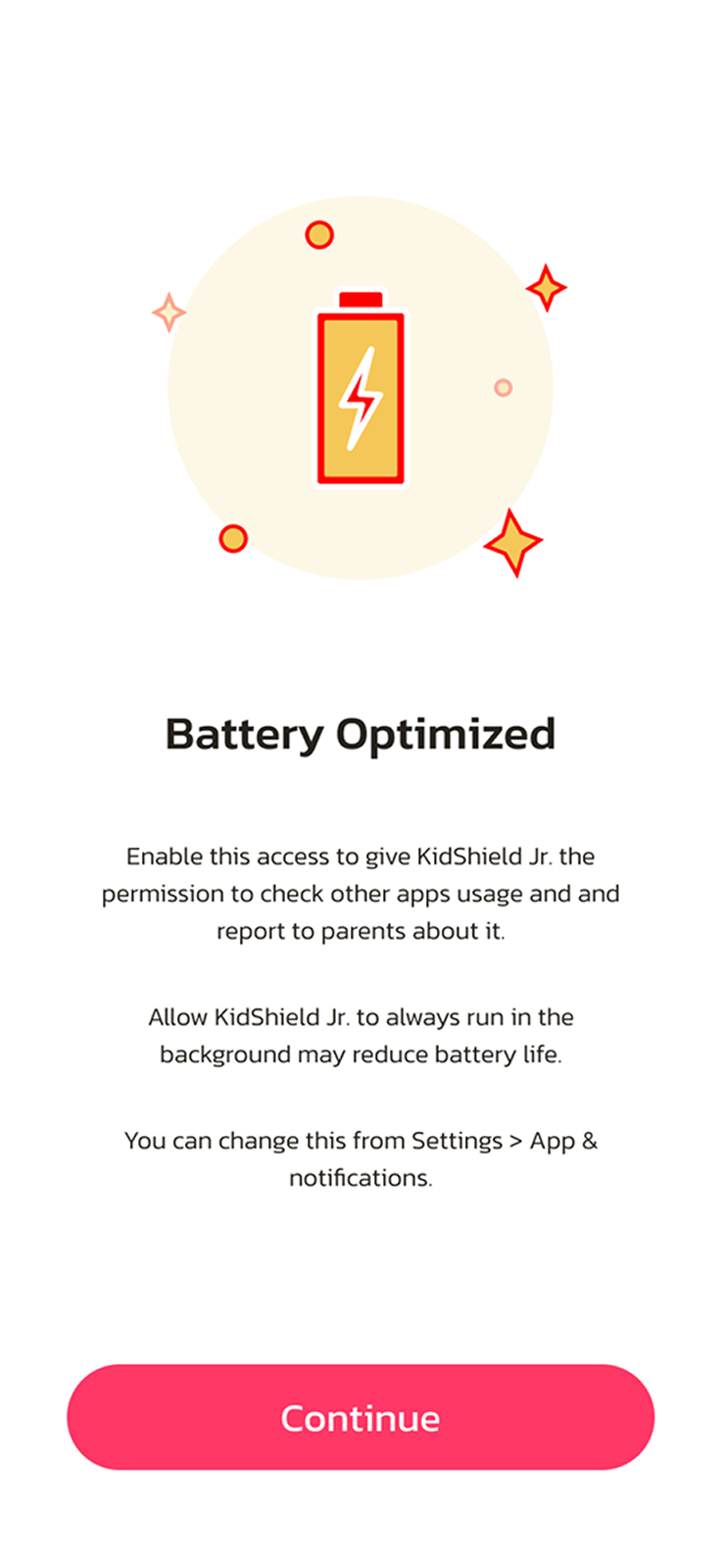
Tap 'Don't optimize' to keep app always active
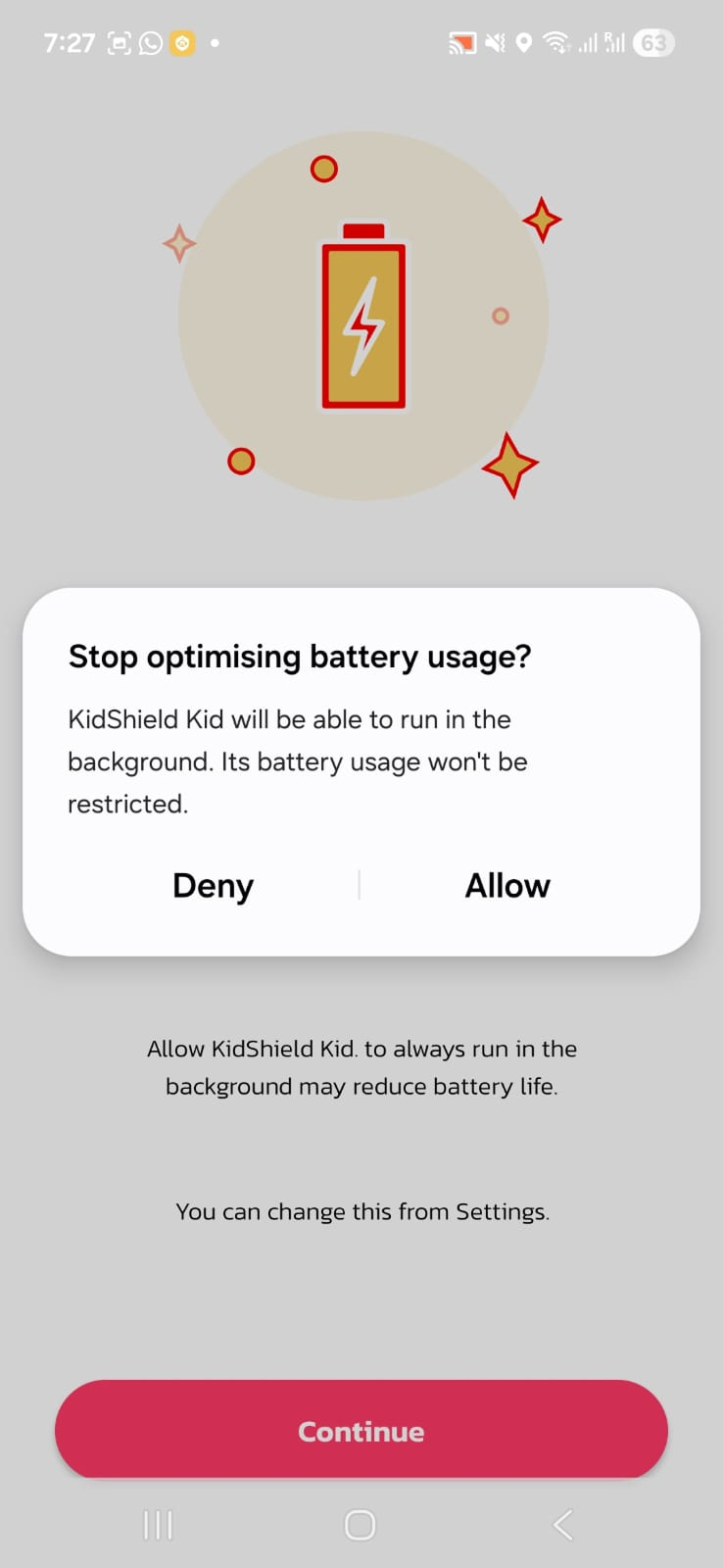
KidShield runs 24/7 without interruption
Location Permission
Provides device location updates and configured safe-zone alerts when this optional feature is enabled.
📂 Settings → Apps → KidShield Kid. → Permissions → Location
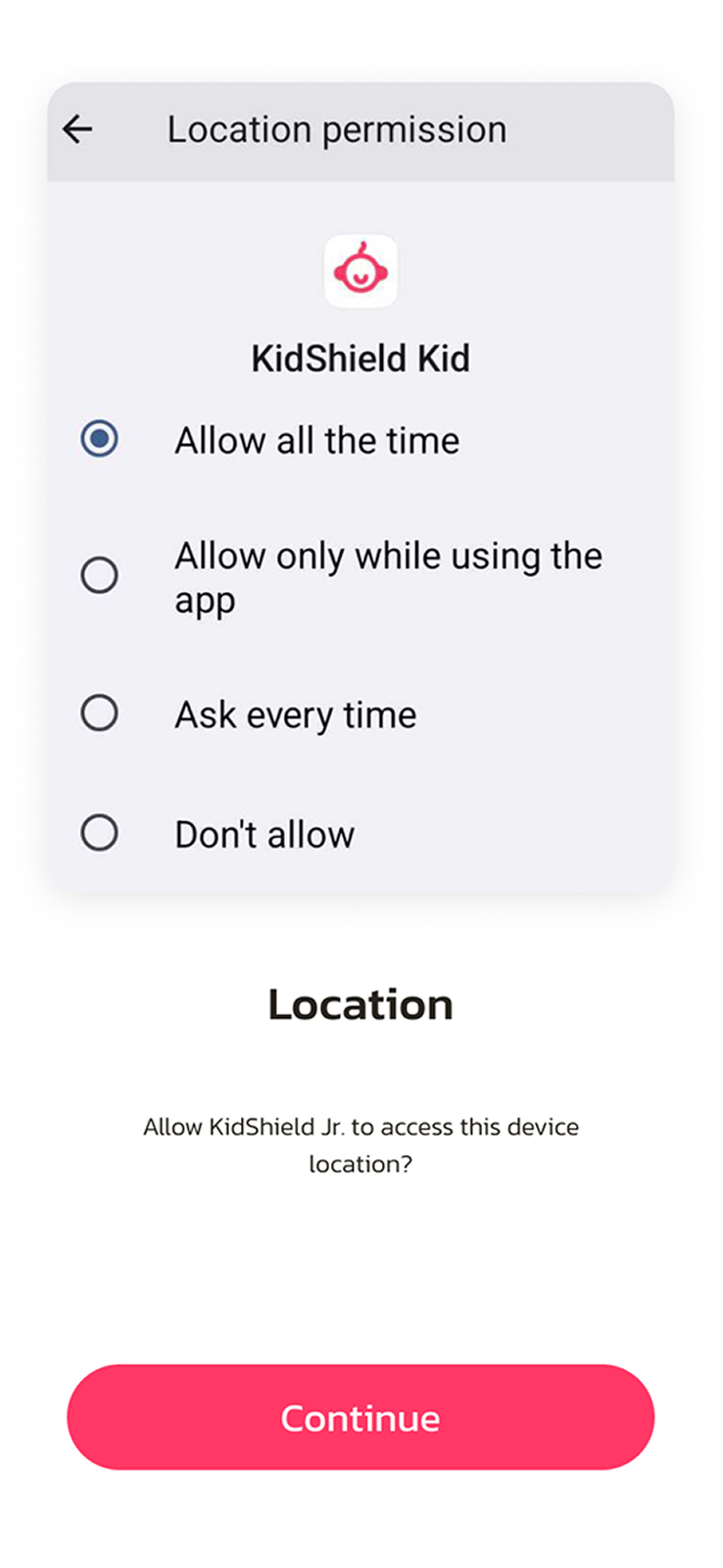
Select "Allow all the time" only if you want background location-safety updates
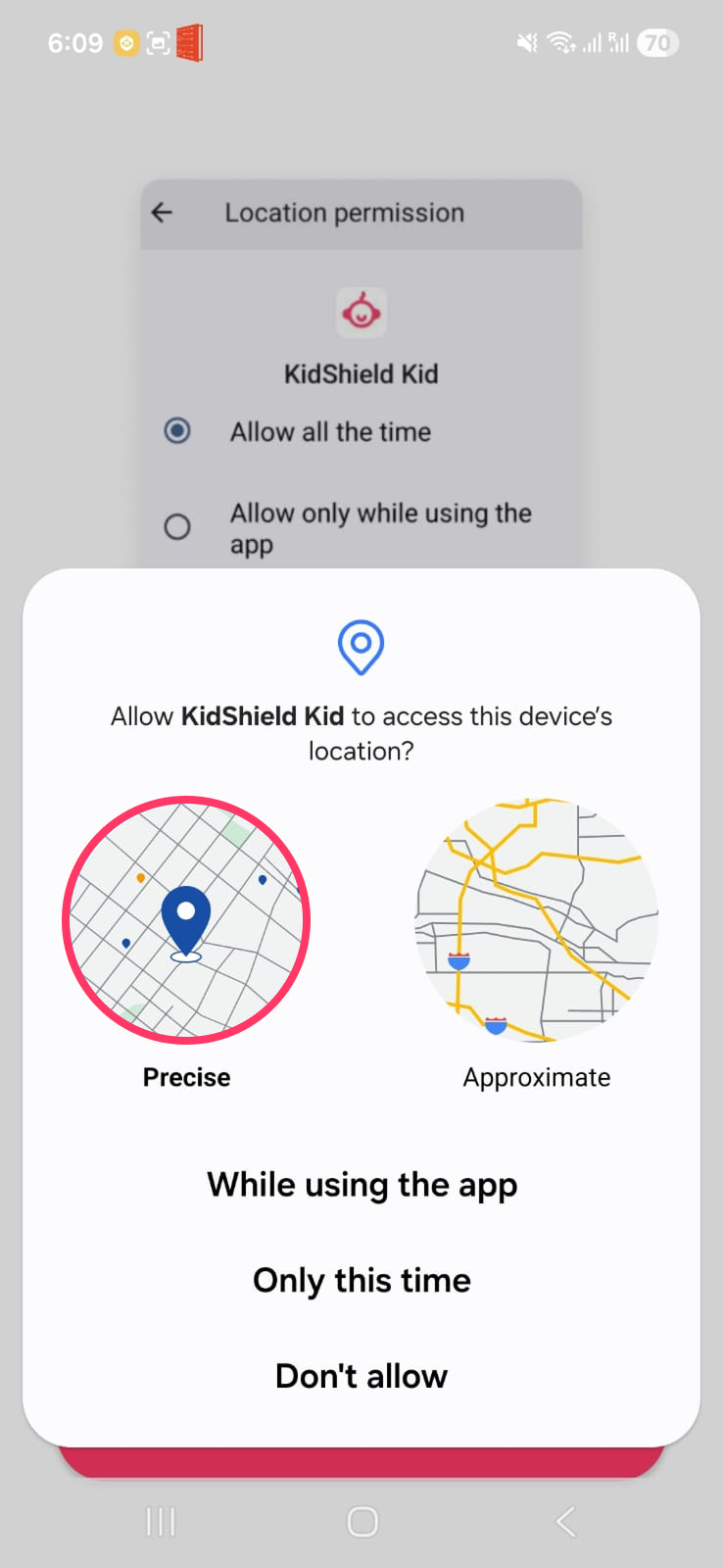
Select Allow all the time + precise location ON
VPN Permission
Creates an on-device VPN that filters internet traffic to block harmful websites.
📂 Settings → Apps → KidShield Kid. → Permissions → VPN
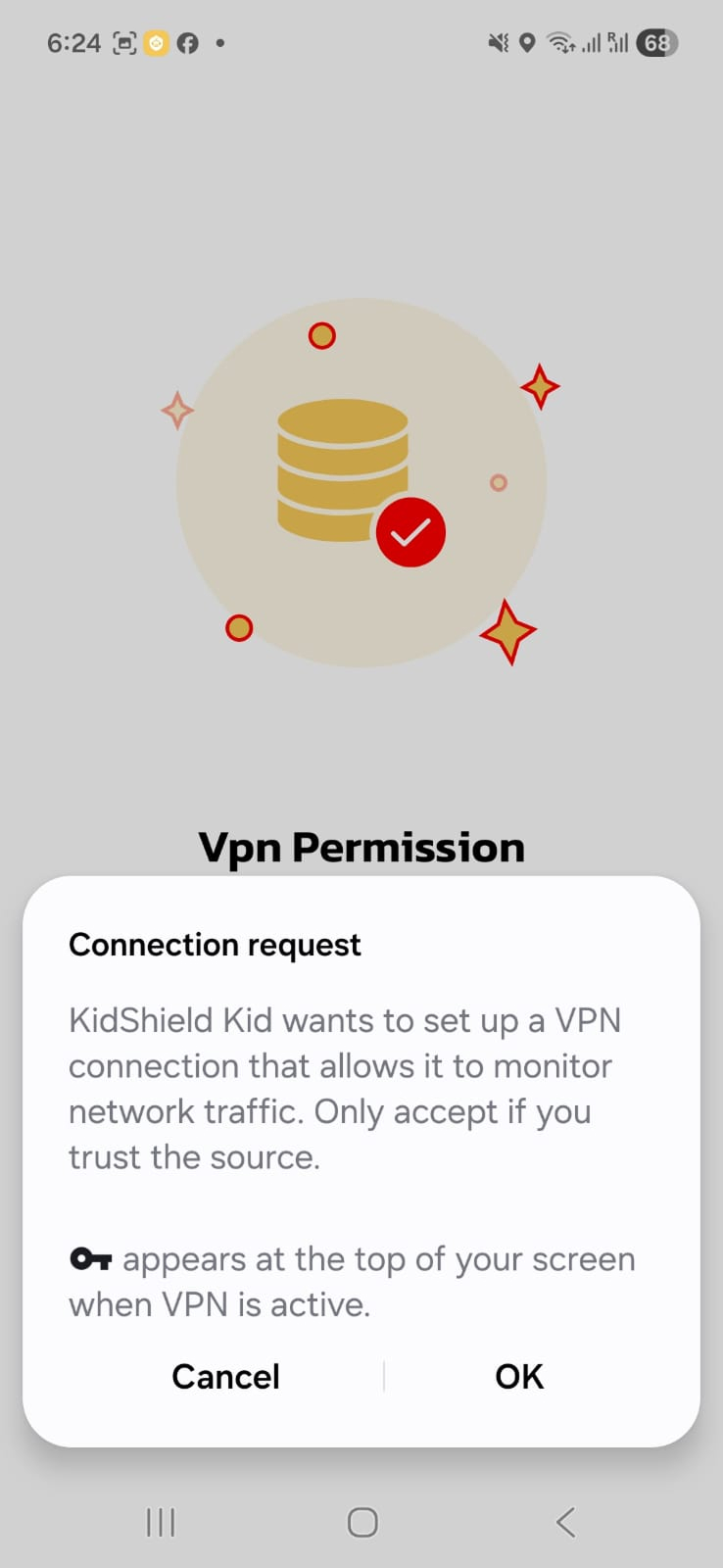
Tap 'OK' to allow KidShield to set up VPN

VPN is now active — harmful sites are blocked on-device
Installed Apps Access
Allows KidShield to identify installed apps for app-access rules and usage summaries.
📂 Follow the on-screen Installed Applications setup

Review why the installed-app list is needed, then tap Continue

Confirm KidShield Kid. shows On in Installed apps
Notification Access
Sends you instant alerts when blocked content is attempted or a new app is installed.
📂 Settings → Notifications → Advanced Settings → Notification Access
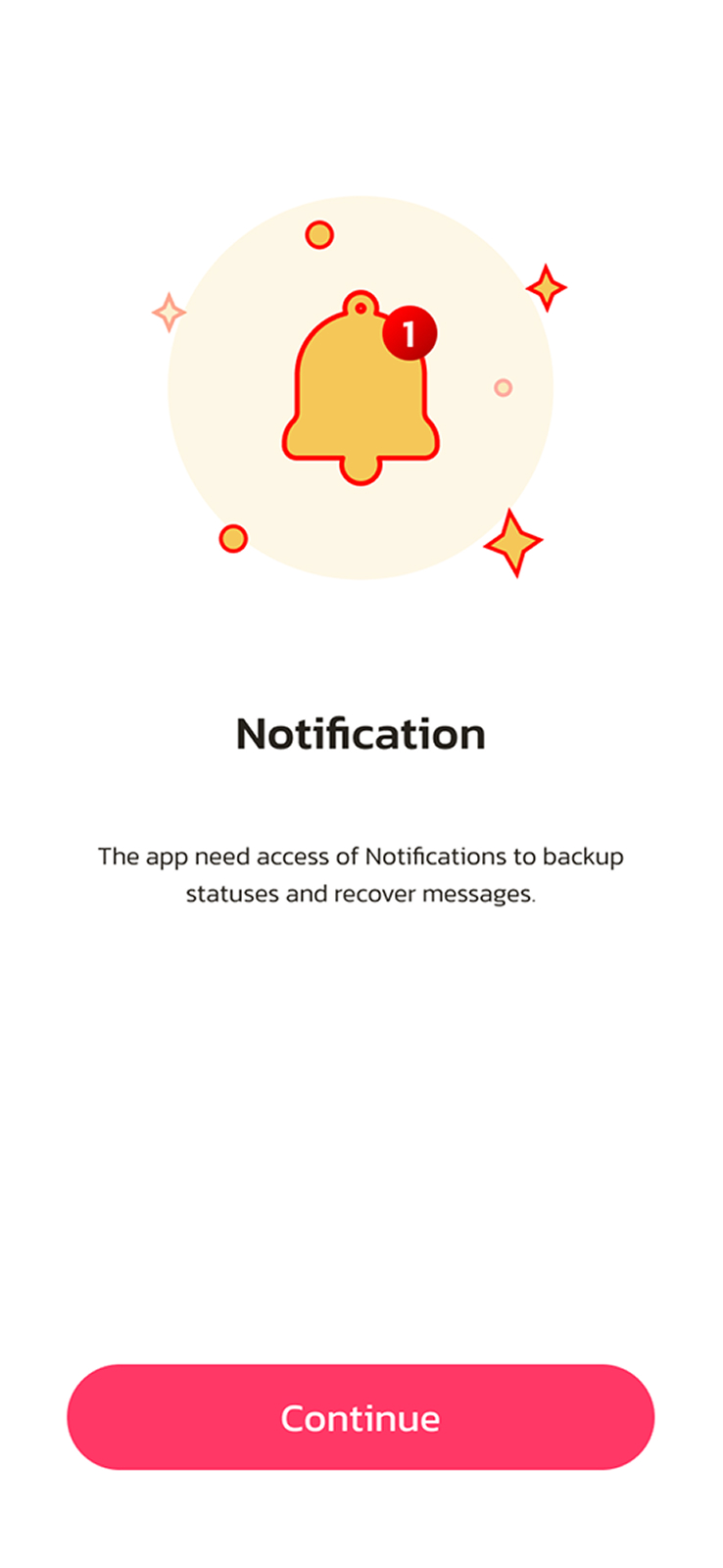
Enable KidShield in the notification listener list
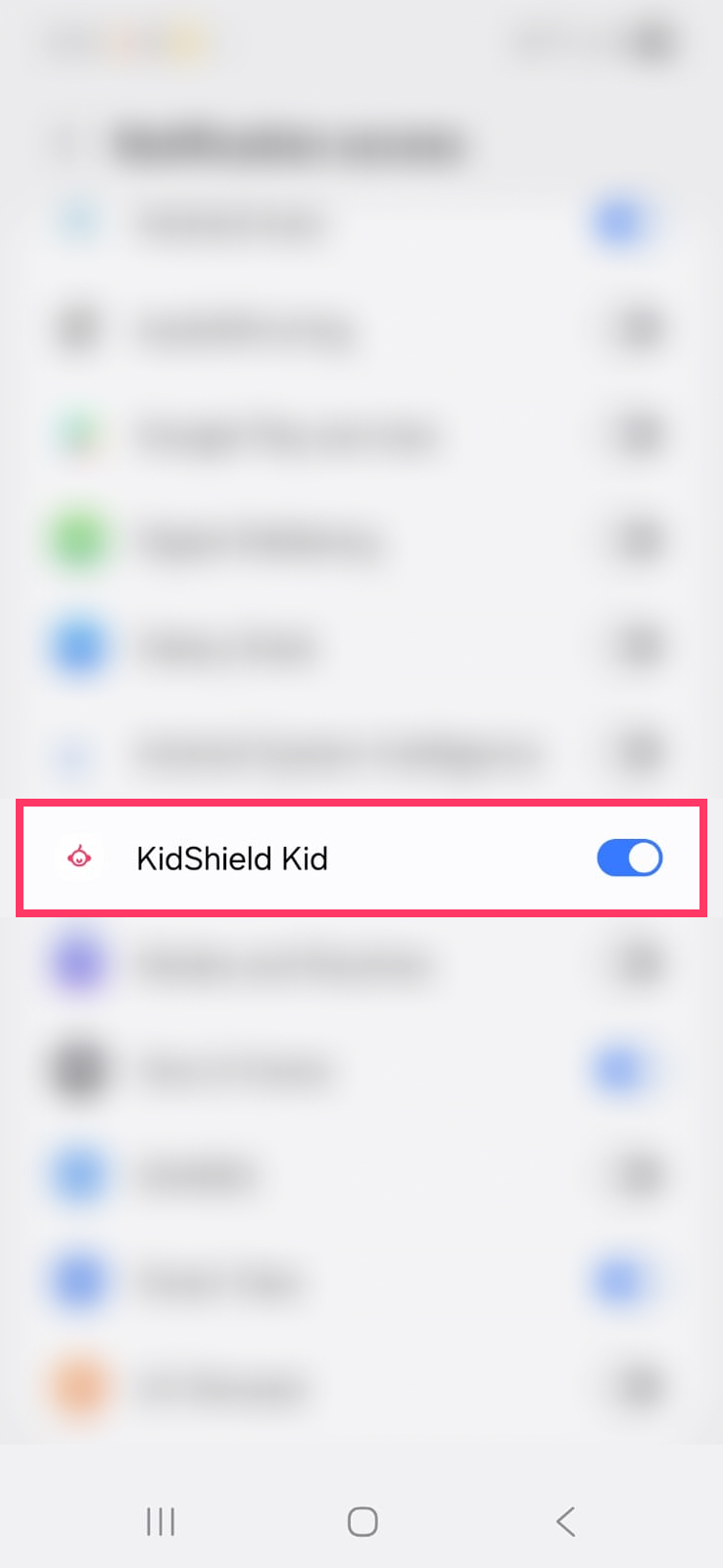
KidShield can now send real-time alerts to parents
Choose a KidShield Plan and Start Protecting Today
Annual subscriptions support 1, 3, or 5 child devices with the same protection tools, parent dashboard, and setup support.